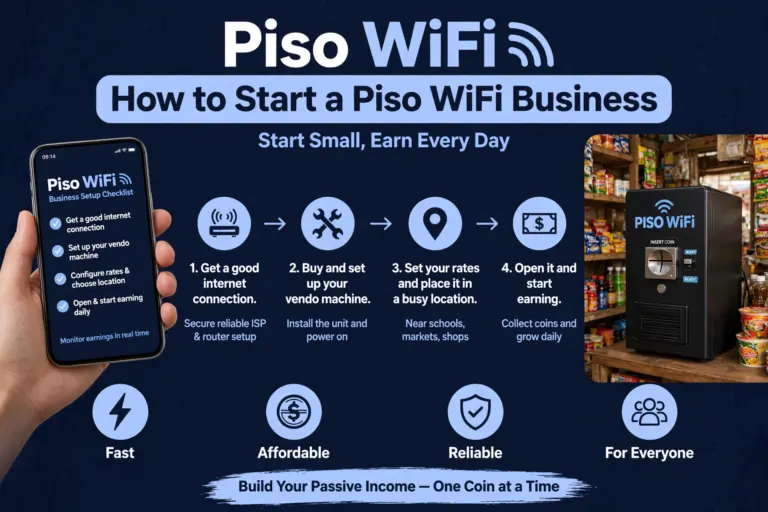
How to Reset Piso WiFi: LPB, AdoPiSoft and Vendo Machine Guide
Resetting piso Wifi is one of the best possible solutions for low connection, access and configuration problems. Therefore, we have brought a really appropriate and accurate guide for all the users and administrators who are facing the Piso Wifi Pause time issues.
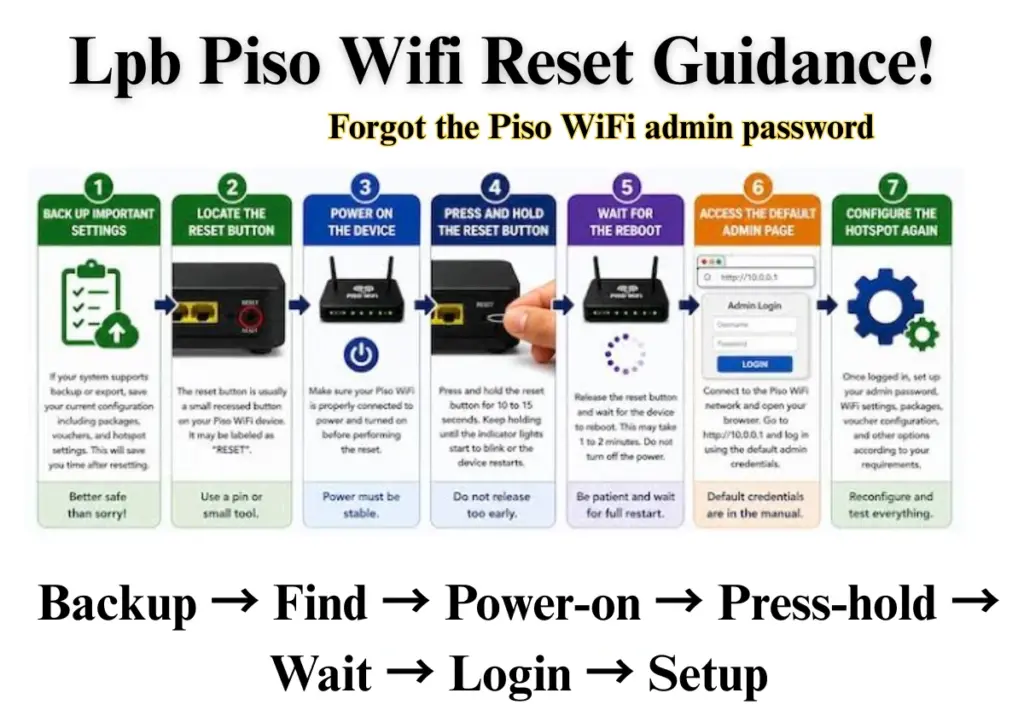
A router reset restores your LPB Piso WiFi system to its original factory settings. This detailed guide provides instructions on when a reset is needed, how to execute it securely, the consequences of post-reset, and how to reconfigure your Piso WiFi system with minimal disruption.
What Is Lpb Piso Wifi & Why To Reset It?
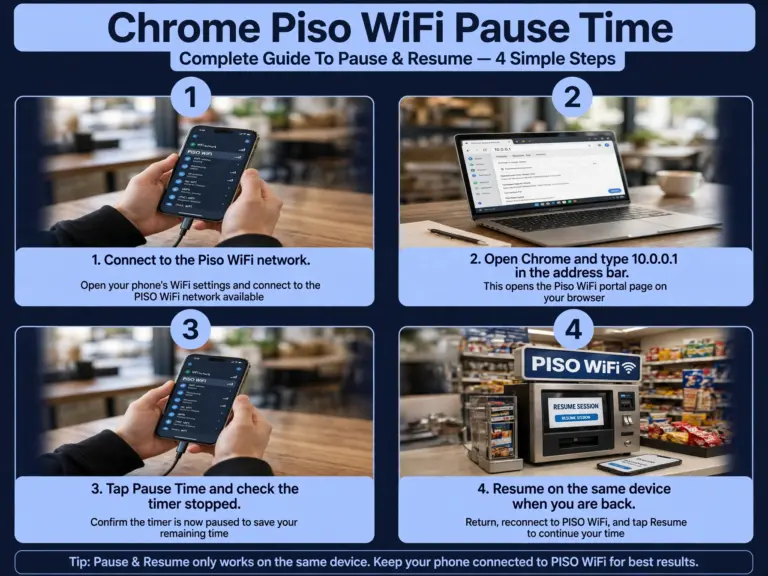
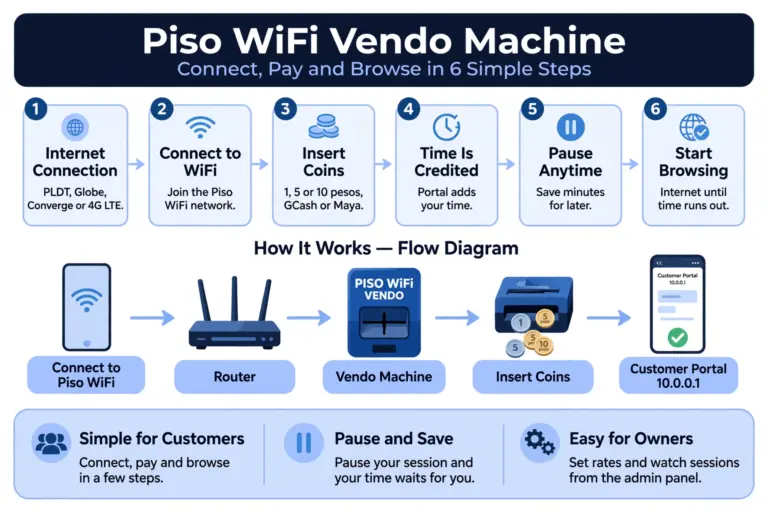
lpb 10.0.0.1 Piso Wifi is a coin operated machine that can be found in every shop and spaces across Philippines local neighborhood. Once a user drops a coin or buys a voucher for the Piso vendo machine, they can than access the set of wifi networks for a certain phase of time. Moreover it also allowed users to halt or pause their ongoing wifi session at pisowifi 10.0.0.1 through a button present at the portal.
Piso Wifi may need to be reset to regain a lost admin password, resolve a frozen session, or restore a used device to its original state before configuring it for personal use.
Three Things People Mean by “Reset Piso WiFi”
You need to clear your reset plan before changing any setting in the Piso wifi system, as users might be confronted with a different situation for each type of piso wifi reset option. Therefore below is a clearance of what exactly are the three things people mean by “Reset Piso Wifi”.
| Your Problem | Recommended Solution |
|---|---|
| Forgot the Piso WiFi admin password, but customers can still connect | Admin password reset: Recover or reset the password using the supported method for your machine. |
| Want to erase all settings and configure the machine again | Full factory reset: Restores factory defaults and may remove WiFi settings, rates, and custom configurations. |
| Piso WiFi pause time is stuck or won’t resume | Session or pause time reset: Check the customer portal or admin dashboard to restart or manage the affected session without resetting the machine. |
Notice: Always try basic troubleshooting before performing a Piso WiFi factory reset. Reset options vary by machine model and software, and some systems may require reconfiguration or restoring a backup afterward.
Restart vs Reset Piso WiFi
In many cases customers get confused Restart with resetting,
Restarting simply deactivates the hotspot and then reactivates it without deleting saved configurations.
A factory reset deletes personalized settings and returns to original defaults.
Grasping this distinction aids in avoiding unintentional loss of vital hotspot configurations.
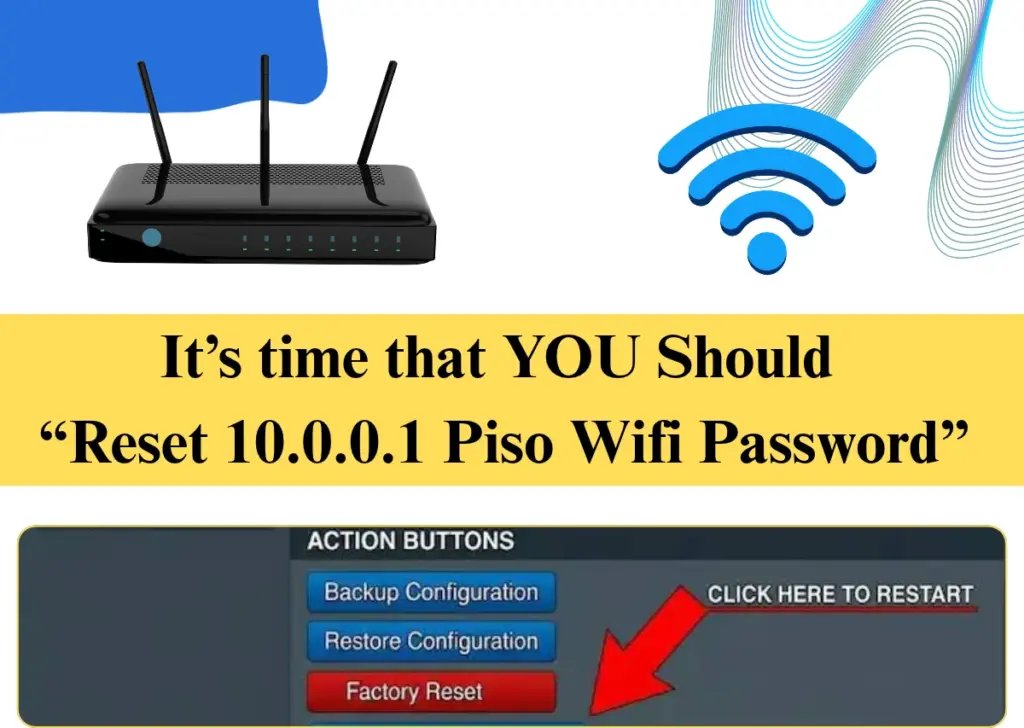
When You Should Reset Piso WiFi
Reset is basically a last solution of your problem that you must opt for when tackling with any kind of problem:
| Problem | Reset? | Try first |
|---|---|---|
| Forgot the admin password, and recovery does not work | Yes, reset it | Try normal recovery first |
| Cannot open the admin dashboard | Only if needed | Try normal troubleshooting first |
| Wrong settings made the hotspot unusable | Yes, reset it | Reset gives you a clean setup |
| Hotspot crashes or restarts again and again | Yes, if a restart does not fix it | Restart first |
| Network problem stays after a restart and checks | Last option | Check the 10.0.0.1 Not Working guide first |
| Firmware update failed, and the hotspot is unstable | Yes, reset it | Reset may bring it back to normal |
How to Reset 10.0 0.1 Lpb Piso WiFi Admin Password
Before making any resets, verify if the password was ever genuinely altered. The majority of LPB Piso WiFi routers come with the username and password both configured as admin, although the installer or firmware version may occasionally set it to admin / 123456789 instead.
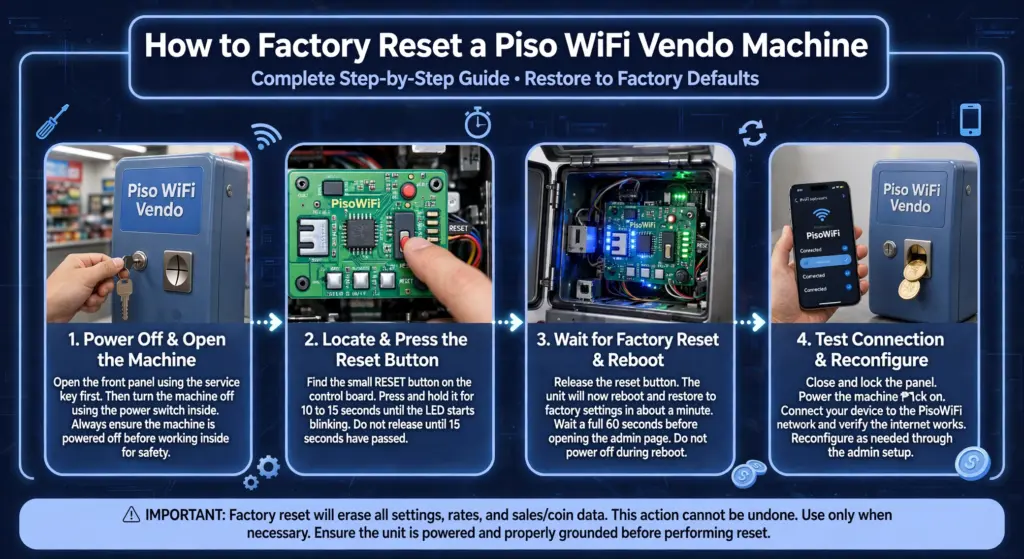
Steps to Reset LPB Piso WiFi Admin Password
Important: If you still can’t access the LPB Piso WiFi admin panel, a hardware or factory reset may be necessary. However, this depends on your machine’s firmware. Back up your settings, including WiFi configuration and internet rates, before resetting the device.
How to Change Piso WiFi Password Without a Full Reset
If you are able to log in, indicating that the password only requires updating instead of recovering from a locked-out condition, bypass the reset completely. This is the most secure choice as it maintains everything else in its original state.
- Access the admin panel at 10.0.0.1/admin with your existing login details.
- Go to Settings or Account (on AdoPiSoft, it’s Menu > Admin > Your Profile).
- Choose Alter Password.
- Input the old password a single time, followed by the new password entered two times for confirmation.
- Save – this is effective right away, having no effect on your rates, vouchers, or WiFi configurations.
Guide: Perform this right after your initial login on any new device. Retaining the default admin/admin credentials is the primary reason unauthorized individuals access Piso WiFi admin panels, and a quick two-minute password change now can prevent a complete reset later.
How to Hard Reset Piso WiFi
After going through all the procedures and still can’t solve the issue then reboot/reset piso wifi is the only solution. The factory reset process may vary depending on your LPB Piso WiFi hardware and software version.
Step 1: Back Up Your Piso WiFi Settings
Before resetting, save your important settings if you can access the admin dashboard. These may include WiFi passwords, internet rates, voucher details, and network configurations.
Step 2: Find the Reset Button
Locate the physical reset button on your Piso WiFi router or controller. It is usually a small, recessed button on the back or side of the device. Check your hardware manual to confirm its location.
Step 3: Turn On the Piso WiFi Machine
Make sure your Peso WiFi device is powered on and receiving a stable power supply before starting the factory reset.
Step 4: Press and Hold the Reset Button
Use a pin or paperclip to press and hold the reset button for the duration specified by your device manufacturer. Release it when the device indicates that the reset has started.
Step 5: Wait for the Machine to Restart
Allow your Piso WiFi machine to reboot completely. Do not turn off the power during the reset process.
Step 6: Log In to the Piso WiFi Admin Portal
Once the device restarts:
- Connect your phone or computer to the Piso WiFi network.
- Open Chrome and visit http://10.0.0.1/admin, if this is the admin address configured for your system.
- Enter the default admin username and password provided in your device documentation.
Step 7: Set Up Your Piso WiFi Machine Again
After logging in, configure your admin password, WiFi name (SSID), internet rates, vouchers, and other network settings. Test the customer portal to make sure everything works properly.
Important: A router factory reset does not always reset the LPB Piso WiFi software or its admin password. Some setups use separate hardware and software configurations. Confirm the correct reset method for your device before proceeding, as a factory reset may permanently erase saved settings.
How to Hard Reset an AdoPiSoft Vendo Machine
When overseeing a coin-operated vending machine instead of a router quietly placed in a home network closet, three additional factors are important along with the usual software reset. These aspects address the hardware elements that a simple network reset cannot impact.
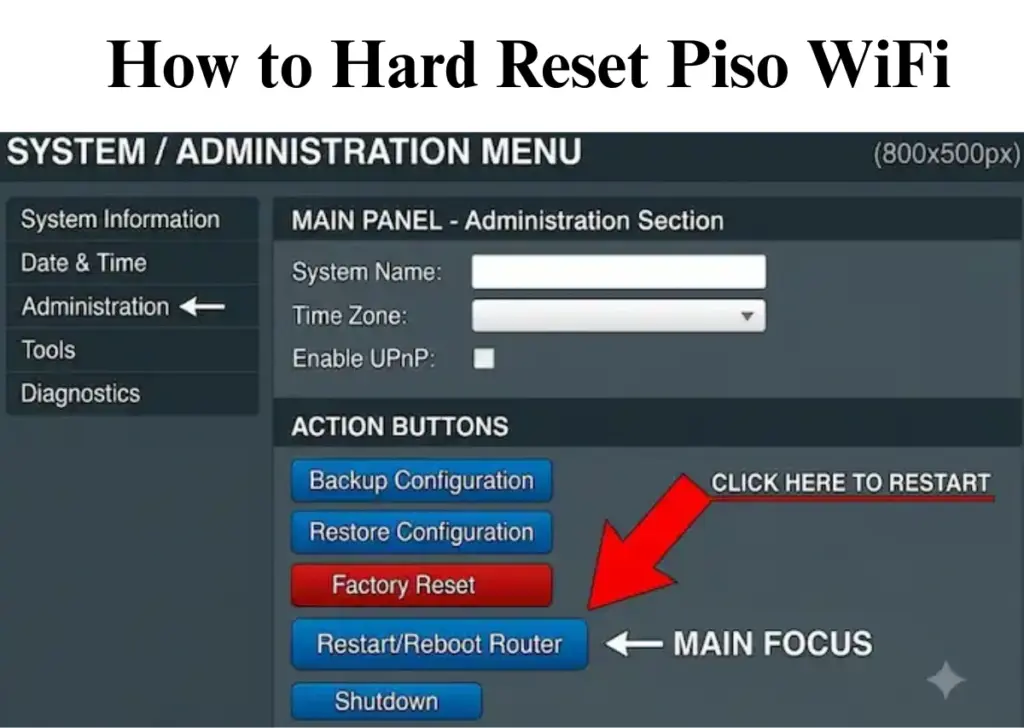
How to Reset Piso WiFi Router
Resetting the router can resolve common problems if your LPB Piso WiFi system is malfunctioning. If you’re unable to access the 10.0.0.1 admin page, facing internet problems, or have forgotten your login information, a factory reset will restore the system to its default settings and offer you a clean slate.
Resetting the router restores your LPB Piso WiFi system to its original factory settings. Throughout the procedure, all personalized configurations are deleted, such as:
Personalized network configurations, featuring 10.0.0.1 Piso WiFi Pause Time settings.
Once the reset is completed, you must log in via 10.0.0.1 Piso WiFi or 10.0.0.1 admin to reconfigure your network.
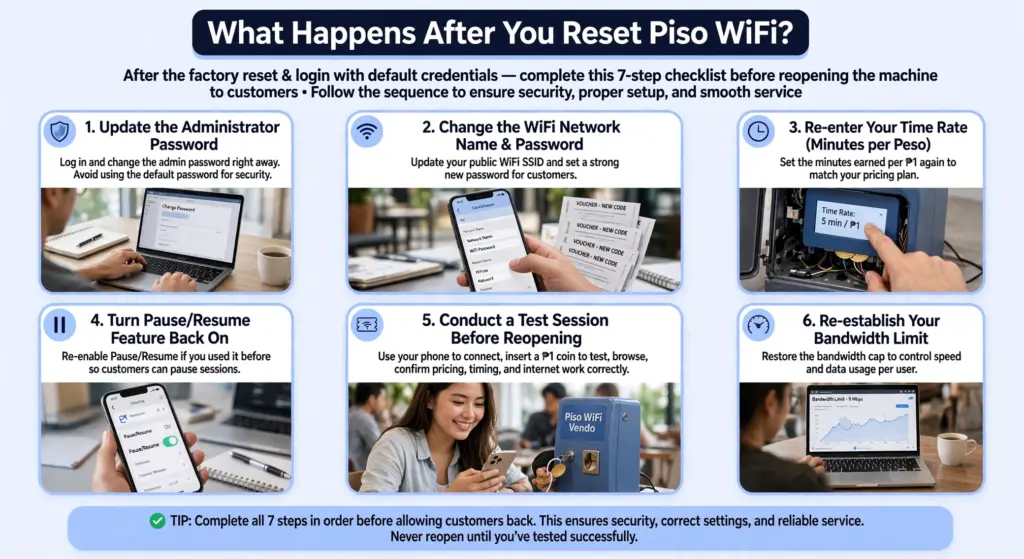
What Happens After You Reset Piso WiFi?
After finishing the factory reset and logging in with the default credentials, go through this checklist prior to reopening the machine to customers. Following the sequence prevents you from overlooking the crucial security steps.
What Gets Wiped When You Reset Piso WiFi
A factory reset removes all personalized settings and configurations, not solely the password. This encompasses your personalized WiFi name and password, your rate configurations (minutes for each peso), any voucher codes you’ve created, your bandwidth restrictions, and your sales records.
Ensure you back up essential files, such as your sales report, prior to executing a complete reset if that information is important to you.
Replacement cost reminder (confirm locally prior to purchase): If a reset fails to restore the unit and hardware is necessary, a replacement LPB Piso WiFi router usually costs between ₱1,500 and ₱3,500, a standard aftermarket router is approximately ₱800 to ₱2,000, a Raspberry Pi board for an AdoPiSoft setup is around ₱2,000 to ₱4,500, and an extra coin acceptor component is about ₱300 to ₱800.
Settings to Set Again After Reset
It usually takes 10 to 15 minutes to reset everything once you do the factory setting as the system has to start fresh from scratch.
Set them in this order:
Log in at 10.0.0.1/admin > Change the admin password > Set the WiFi name and password > Set your rates and time per coin > Turn Pause Time on > Set the speed limit > Create new vouchers > Save
Two things to remember. Your old vouchers are gone, so you have to make new ones. And your old sales history is also gone, it does not come back.
At the end, test it with one coin.
Insert ₱1 > Check the time > Pause > Resume > Check the internet works.
How to Reset Piso WiFi Time as a Customer
As a client, you are unable to reset the machine itself. That can be done solely by the owner. You are able to pause, resume, and restart your own session. Never perform a factory reset on the device during your time, as it will erase your session and result in the loss of your paid time.
If your time remains incorrect or your purchased time has expired, request that the machine owner verify your session via the admin dashboard. If your session has completely expired, insert a coin or utilize a voucher to initiate a new session.
Troubleshooting Piso WiFi Reset Problems
A simple reset can be hindered by minor issues, such as a button pressed for too short a time, a page that loads too quickly, or firmware that acts in a way that deviates from the usual defaults. The three solutions listed below address the issues that owners frequently encounter.
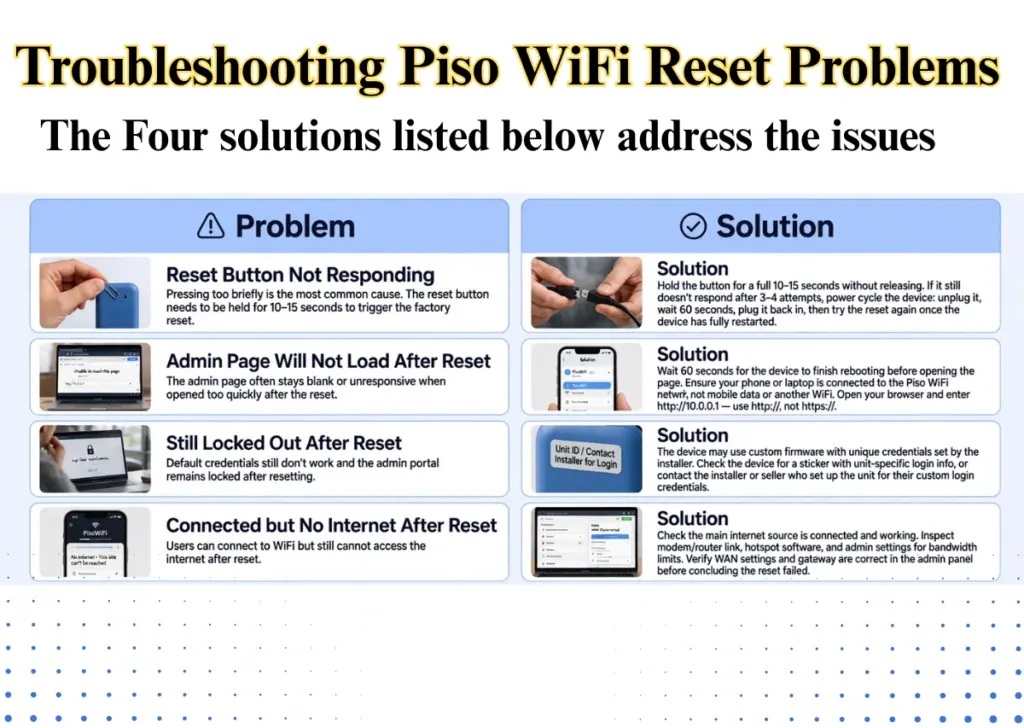
Reset Button Not Responding
Problem: Ensure you’re pressing the button for the entire 10 to 15 seconds, as letting go too soon is the primary reason a reset seems to not work.
Solution: If the button truly does nothing after three or four attempts, the device might require a complete power cycle: disconnect it, wait a full minute, reconnect it, and then attempt the reset button again once it has fully restarted.
Admin Page Will Not Load After Reset
Problem: In many cases of 10.00.1 piso wifi reset, the admin page do not respond due to which many users get tensed.
Solution:
- Allow the router a complete 60 seconds to reboot prior to attempting to log in, as accessing the admin page too quickly after a reset is a frequent reason for a blank or unresponsive display.
- Ensure that you are connected to the Piso WiFi network and not using mobile data or another WiFi network, and that you are using http:// instead of https:// in the address bar.
Still Locked Out After Reset
Problem: Sometimes resetting piso wifi passwords does not solve the problem and the portal is still locked out after reset.
Solution:
- If the default credentials and a hardware reset do not regain access, the machine could be operating on custom firmware from a particular installer that employs a completely different reset method.
- Inspect the physical device for any label containing unit-specific login information, or reach out to the individual who installed or sold you the equipment, as a seller might configure unique credentials not addressed by a standard guide.
Connected but No Internet After Reset
If users can connect to WiFi but still cannot browse the internet, check your internet connection, router configuration, hotspot software, and administrator settings before assuming the reset failed.
Safety Tips Before Resetting
Following are some of the convenient advices for admin and customers to follow before resetting Piso internet:
Conclusion
Resetting Piso WiFi can help fix admin login issues, connection problems, and incorrect settings on LPB, AdoPiSoft, and other Piso WiFi vendo machines. However, always try restarting or troubleshooting before performing a factory reset.
Back up your important settings, follow the correct reset method for your device, and reconfigure your WiFi, internet rates, and Piso WiFi Pause Time settings afterward. This helps restore your machine safely and avoid unnecessary data loss.