
LPB Piso WiFi 10.0.0.1 Pause Time – Login, Pause and Resume Guide
LPB Piso Wifi 10.0.0.1 is the Wifi System that runs through Coin-operated Machines placed across the Philippines in small stores. This system allows the local customers to pay for small time wifi so that they can run their sessions without interruption.
Moreover Lpb Piso Wifi 10.0 0.1 Pause time allows customers to halt their ongoing timer on the machine and do their task so that they can continue with their remaining session once they return, this saves their remaining minutes of Piso wifi on their device.
This guide will take you through the most important information related to the Philippines’ widely expanded paid wifi system and also unveiled the login and access process for admin and users in simple steps.
What Is LPB Piso WiFi?
Piso Wifi is a pay-per-use service found in locations with fewer customers who own monthly internet plans and packages. Therefore, in these regions, this service is highly beneficial for less income generated people.
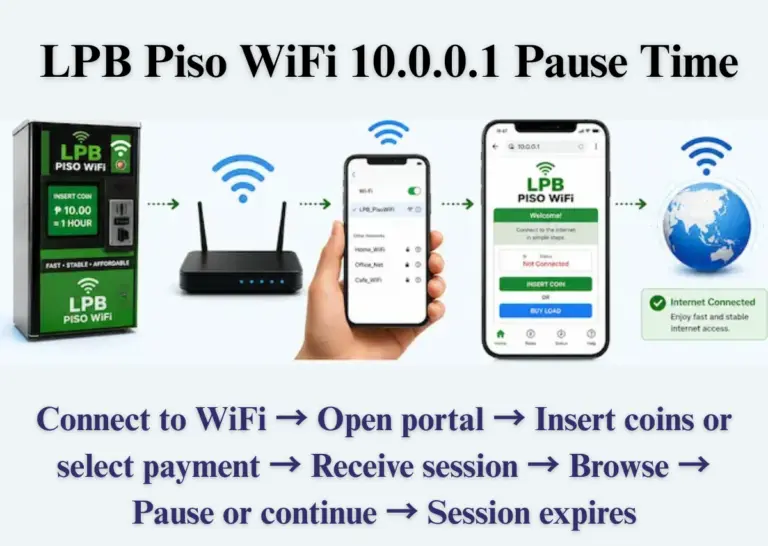
Additionally, if you only need access for a few hours, you can enter, purchase, and pay for precisely the amount of time you need. It runs on a router installed inside a vendo machine, letting customers pay small amounts for timed internet access while the owner earns steady income from the same setup.
Accessing it through your smartphone is simple; just connect to the Piso Wi-Fi setting, and sometimes you won’t even need to enter a password. In addition, Piso WiFi is widely utilized in areas where home internet access can be scarce or costly.
LPB Piso WiFi machines Location
Following are some of the spots where you can easily avail the Piso wifi Online services.
- Sari-sari stores
- Jeepney terminals and waiting sheds
- Condo lobbies and boarding houses
- Barangay halls and public waiting areas
How LPB Piso WiFi Works
There are several components that are working together to setup the Lpb Piso Wifi system.
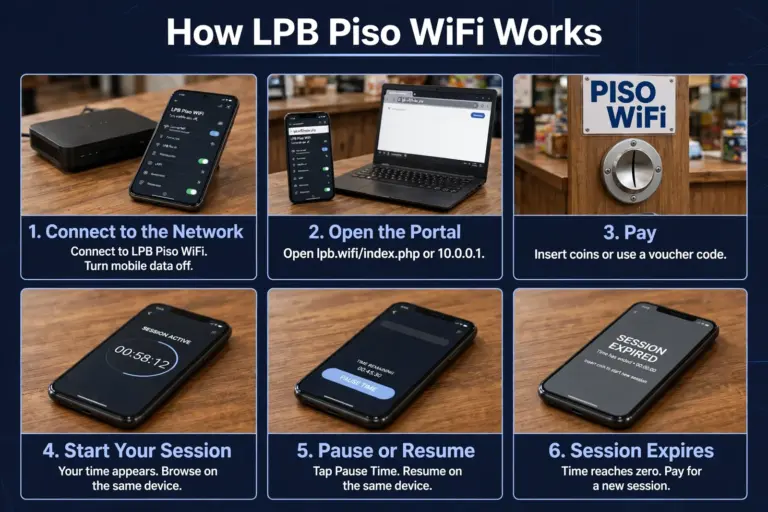
Here is a simple path of a customer journey who run their application via Piso wifi 10.0.0.1 system:
Connect to WiFi → Open portal → Insert coins or select payment → Receive session → Browse → Pause or continue → Session expires
Step 1: Connect to the LPB Piso WiFi Network – Open the WiFi settings on your phone or laptop and connect to the LPB Piso WiFi network. Tip: Turn mobile data off first, so the login page can load properly.
Step 2: Open the LPB Piso WiFi Portal – Open your browser and go to lpb.wifi/index.php or 10.0.0.1 in the address bar. The portal page should appear, showing your remaining time, the rates, and the Pause Time button.
Step 3: Insert Coins or Select a Payment Option – Insert coins into the machine or choose the payment option shown on the portal, such as a voucher code.
Step 4: Receive Your Session – Once your payment is accepted, your session will start and your time will appear on the portal. You can now browse, chat, study, or watch videos while your timer runs. Tip: Remember, to use the service on the same device as a session is restricted to one device that you connected to the piso portal.
Step 5: Pause Your Time or Continue Browsing – If you need a break, tap Pause Time on 10.0.0.1 ph portal and check that the timer has actually stopped. When you are ready, open the lpb.wifi/index.php again on the same device and tap Resume to continue from where you stopped.
Step 6: Let the Session Expire When Time Runs Out – When your remaining time reaches zero, your session will expire and your internet access will stop. To go online again, you will need to pay for a new session.
Key Facts About lpb.wifi/index.php Piso Wifi System:
LPB Piso WiFi Pause Time Explained
The piso lpb wifi pause time function is among the platform’s most searched for information, as it allows users to stop their session time rather than losing the remaining minutes.
The name originates from “piso,” the Filipino term for the one-peso coin that the system was initially designed around, although most machines now also accept GCash and Maya in addition to cash.
How to Pause LPB Piso WiFi Time
In order to pause your current session you simply have to return to the same lpb piso wifi 10.0 0.1 URL you previously used for payment.
- Open your browser and navigate to 10.0.0.1 while remaining connected to the network.
- Press the Pause Time button on the portal page.
- Your available balance is instantly frozen.
- To proceed, press Resume Time to return to your previous point.
Why it’s important: Pause time is designed to prevent users from losing paid minutes when they leave their device. If you lack it, the timer continues to decrease even if you’re not actively exploring.
Check Your Lpb Piso Wifi Pause
Simple steps to check Philippines’ paid Piso network pause status:
- Connect to the lpb piso wifi 10.0.0.1 pause time login network on your device.
- Open a browser and navigate to 10.0.0.1.
- Look at the portal page for your remaining time display.
- If your session was previously paused, the frozen balance shows here before you tap Resume.
How to Resume and Check Your Remaining Time
Once you’re ready to use your halted wifi connection again, follow these steps:
- Connect to the LPB network using the same device you used earlier.
- Open your browser and return to lpb.wifi/index.php or 10.0.0.1.
- Tap the Resume button to continue your internet session.
- Check the remaining time displayed on the portal before browsing to make sure your session has resumed correctly.
Tip: Always confirm that your timer has paused or resumed successfully on the portal to avoid losing your remaining internet time.
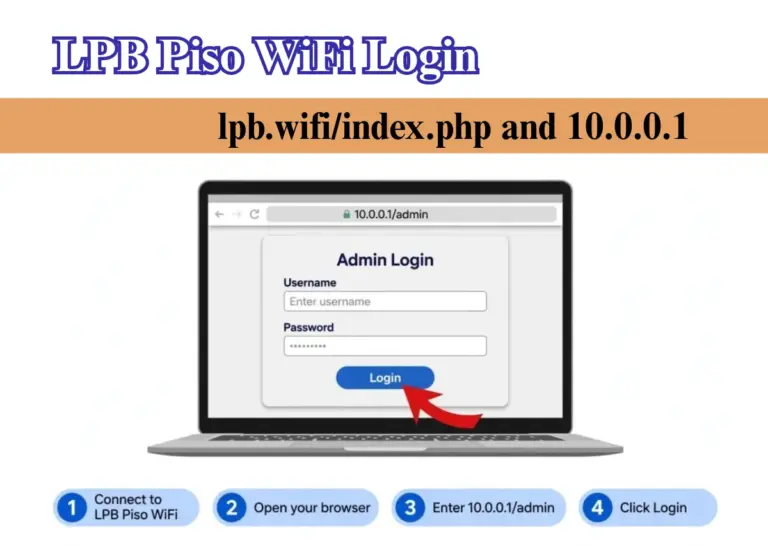
LPB Piso WiFi Login – lpb.wifi/index.php and 10.0.0.1
The LPB Piso WiFi portal can be opened in two ways. Both open the same customer portal, so use whichever one loads on your device.
| Address | Purpose |
|---|---|
| http://10.0.0.1 | Customer login portal – pay, view time, pause or resume |
| http://lpb.wifi/index.php | Same customer login portal, opened through the LPB portal name instead of the IP address |
| http://10.0.0.1/admin | Owner dashboard – set rates, print vouchers, view sales |
Customer Login vs Admin Login: What Is the Difference?
Sometimes using the wrong login can cause a bigger mistake for the user to process on the portal as all individuals have to login from the same page to run the further application whether its a Customer or admin.
| Customer Login | Admin Login | |
|---|---|---|
| Who it is for | Anyone using the LPB Piso WiFi machine | Only the vendo owner |
| Address to open | 10.0.0.1 or lpb.wifi/index.php | 10.0.0.1/admin |
| What you need | A connection to the LPB WiFi network and payment, such as coins or a voucher code | The owner’s admin username and password |
| What you can do | Pay for time, view remaining time, pause time, and resume your session | Set rates, turn pause time on or off, create vouchers, and view sales |
| What you cannot do | Change rates, settings, or other users’ sessions | This login is not for buying time or pausing a customer session |
LPB Piso WiFi Login for Customers
- Link your device to the LPB Piso WiFi network.
- Launch a browser and enter 10.0.0.1 in the address field, not in the search field.
- Press the Insert Money option.
- Place coins or input your voucher code.
- Select Done Paying to start your session.
Guidance: Connect with a LAN cable when configuring anything instead of merely surfing the web. A lost WiFi connection during setup can require you to restart the entire procedure.
LPB Piso WiFi Login for Vendo Owners
The 10.0.0.1 Vendo Login is used for vending machine or vendo owners settings.
Steps for Piso WiFi Vendo Setup:
- Login to 10.0.0.1 admin panel, enter default user name and default password.
- Go to Vendo Settings
- Configure coin slots
- Set rates (e.g. 1 coin 5 minutes).
- Enable pause time feature
- Save settings
The process is key to running a successful piso wifi business.
LPB Piso WiFi Portal vs Router Login
In a very simple wording, Piso wifi portal is built for the users or customers of the internet where they can insert the coins, check the status of their remaining usage, or pause and resume the piso pause time.
Whereas, router login is the administration page for the vendo machine owner who can use it to manage network settings, change the WiFi password, and configure the router
LPB Piso WiFi Pause Time Not Working? Common Fixes
In many cases lpb Piso Wifi Pause time button does not work or it may encounter other complications.
Most of these problems come down to a frozen portal page, an expired pause window, or switching devices. Here’s how to clear up the usual ones quickly.
| Problem | Likely Cause | Fix |
|---|---|---|
| LPB Piso WiFi Pause button is missing | Pause Time is disabled by the owner, or you are on the wrong portal page | Reload the portal at 10.0.0.1. If the button is still missing, ask the owner to enable Pause Time. Disconnecting WiFi will not pause your time. |
| LPB Piso WiFi Pause button will not respond when tapped | The portal page is stale, the tap did not register, or the connection is weak | Check if the timer shows Paused. If not, reload 10.0.0.1 or open it in an incognito tab and tap Pause Time once again. |
| LPB Piso WiFi paused time was not saved | You left before the portal showed Paused, so the timer kept running | Always confirm the timer has stopped before leaving. If it is still running, tap Pause Time again and wait for the Paused status. |
| LPB Piso WiFi session will not resume and the time is gone | You waited past the pause limit set by the owner, so the session expired | Try the same device first. If the time is still gone, pay for a new session and resume sooner next time. |
| You resumed LPB Piso WiFi but lost the remaining time | You moved to a different phone or laptop | Always resume on the same device you paid with. Your session is tied to that device. |
| LPB Piso WiFi portal page keeps freezing or will not load | Weak signal, too many users on the machine, mobile data is on, or the address was typed in Google search | Turn mobile data off, type 10.0.0.1 in the browser address bar, move closer to the machine, and retry after a minute. |
Common LPB Piso WiFi Typos and Misspellings
In most of the cases, google searches encounter several mistyping errors that prevent the user from launching a correct Piso 10.0 0.1 portal.
Common Type of Digit And Formatting Errors
- 10.0.0.0.1 lpb piso wifi
- 10.0.0.1 lpb piso wifi pause time login page
- 10.10 0.1 lpb piso wifi pause time
- 1.0 0.0 1 10.0 0.1 pause time lpb piso wifi
- 10 lpb piso wifi
Portal Address Misspellings
- lbs piso wifi
- lbp piso wifi
- lb piso wifi
- lbs piso wifi 10.0 0.0
- lbs piso wifi 10.0 0.1
All of these variants are invalid. The brand name is LPB, consisting of three letters, and the accurate address is 10.0.0.1, featuring four numbers divided by three dots.
LPB Piso WiFi Admin Access
Piso Admin dashboard is only visible at the vendo owner site that has full control of how the machine works, as it operates the important tasks like rates, vouchers, and network settings.
Access Admin Login Via 4 Steps:
- Connect to the lpb piso wifi pause time network.
- Open a browser and type 10.0.0.1/admin into the address bar.
- Enter the default username admin and default password 123456789.
- Complete the CAPTCHA if one appears, then click Sign In.
PISO Admin Dashboard Authority Limits
Important Reminder: change your admin password after your first login and keep it private. Do not share the admin login with customers.
How to Turn Pause Time On or Off
Following are the simple steps that allows the admin to turn pause time on or off:
- Sign in at 10.0.0.1/admin with your administrator credentials.
- Access Portal Settings via the dashboard menu.
- Search for the option to Pause/Resume Time, typically found under Insert Coin Mode.
- Turn it On to provide customers with the button, or Off to remove it. It can be activated for Insert Coin Mode, Voucher Code Mode, or for both.
- Save your modifications, then log in as a normal customer to verify that the Pause Time button is visible on the portal.
The majority of LPB machines allow you to define a maximum pause duration, enabling you to align it with your location. A short cap prevents a machine from being idle all day, while a longer cap is better for areas where individuals take breaks for lunch or tasks.
LPB Piso WiFi Security Tips
Lpb Piso wifi is a wider internet system that is locally available to thousands of people therefore a very strict and convenient kind of security system is applicable to it. Safety matters at both end users and admin, owners need to protect the machine and its settings, and customers need to protect their own session and accounts.
For Vendo Owners
- Change the default password. Use a strong, unique admin password.
- Keep admin access private. Give customers access only to the customer portal.
- Update and monitor. Install supported updates and check for unusual activity.
- Inspect the machine. Check for damaged cables, coin slots, or signs of tampering.
For Customers
- Avoid sensitive activities. Do not access banking or financial accounts on public Wi-Fi.
- Use the correct portal. Visit 10.0.0.1 or lpb.wifi/index.php if provided by the machine.
- Protect your session. Do not share voucher codes, and pause your session before leaving if possible.
Factory Reset Piso Wifi Machine – Simple steps
A factory reset returns a Piso WiFi device to its original settings. It can assist in fixing ongoing configuration issues or regaining access when alternative methods are unsuccessful.
Nonetheless, the reset procedure differs depending on the model and firmware of the LPB Piso WiFi.
- Try restarting first. Restart the machine to see if the problem is resolved without deleting settings.
- Back up important settings. Record your Wi-Fi name, password, pricing, and other configurations.
- Locate the reset button. Check the machine’s manual or device label for the correct reset procedure.
- Follow the manufacturer’s instructions. Use the specified reset method and wait for the machine to restart completely.
- Configure the machine again. Restore your network settings, pricing, and customer access options.
- Secure and test the system. Set a strong admin password and test the internet connection before reopening the machine.
Important: A factory reset may erase custom settings and stored configuration data. Do not assume every LPB Piso WiFi model uses the same reset-button procedure or default login.
LPB Piso WiFi vs Traditional Home WiFi
Lpb Piso Wifi differs in many ways from traditional home wifi. Below are some of the difference to be consider:
| Feature | LPB Piso WiFi | Traditional Home WiFi |
|---|---|---|
| Access model | Pay-per-use or controlled | Usually private |
| Customer portal | Common | Usually not required |
| Session management | Important | Usually minimal |
| Coin/payment system | May be supported | Not typical |
| Public users | Common | Usually no |
| Bandwidth management | Often important | Depends on router |
| Pause-time functionality | May be available | Not usually relevant |
The network technology could converge, yet the objectives and management approaches are distinct.
Conclusion
LPB Piso WiFi simplifies internet access at low costs, allows for the management of paid sessions, and enables pausing or resuming remaining time via the 10.0.0.1 portal. Access the appropriate login page, verify your remaining minutes, and adhere to the troubleshooting instructions if the pause feature ceases to function. Vendo owners must ensure admin access is protected and conduct regular maintenance on their machines.