
Piso WiFi Login: Open the 10.0.0.1 Portal in the Philippines
Piso Wifi login is the first step to launch an official internet platform from where the user or admin can connect it with their device, however in many cases users may face a blank page error just after login their credentials due to a typo mistake.
Connected to the Piso WiFi network? Click the button below to open the login portal at 10.0.0.1 and start your session.
Therefore, this piso wifi login at 10.0.0.1 portal guides you through the complete login process for user and admin including the possible typo or spelling errors which causes the failure in the piso wifi login portal.
What Is Piso WiFi Login?
Piso wifi login is a path through which a person can open a portal on their phone or other device. It is the page where you start your internet session, check your remaining time, and pause or resume your session.
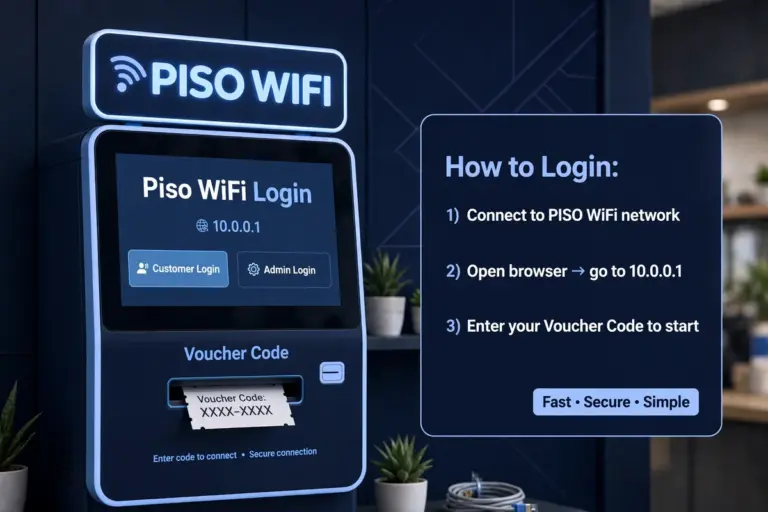
It operates in an uncomplicated manner. Firstly, you link your device to the Piso WiFi network. Then, you launch your browser and enter 10.0.0.1 in the URL field. The Lpb Piso WiFi access portal will launch on the same device.
Two Separate Login Destinations Exist Under One System
Piso Wifi network portal has two different login pages that got many users confused, because the login page works for both the users and admin.
The first one is the Piso WiFi login page for users. Access it using the login address 10.0.0.1. It is intended for individuals looking to access the internet. The 10.0.0.1 admin login is exclusively for the vendor owner. The accurate address is 10.0.0.1/admin. It is not intended for customers.
| Login Type | Who It Is For | What It Is Used For |
|---|---|---|
| Customer Login: 10.0.0.1 | People using the internet | Check time, pay, pause, and resume |
| Admin Login: 10.0.0.1/admin | Vendo owner only | Change settings, rates, and vouchers |
Importance Of Piso Wifi Login
As the system is prepaid and coin-operated, each session begins anew at the portal piso wifi. Entering the correct address initially prevents unnecessary minutes spent looking for the right page while your paid time might already be counting down.
₱1 usually purchases approximately 5 – 15 minutes of internet access depending on the machine’s set rate.
How to Log In to Piso WiFi via 10.0.0.1
Following are some of the easy steps to Log in to Piso Wifi portal so that a user can start their internet session after payment:
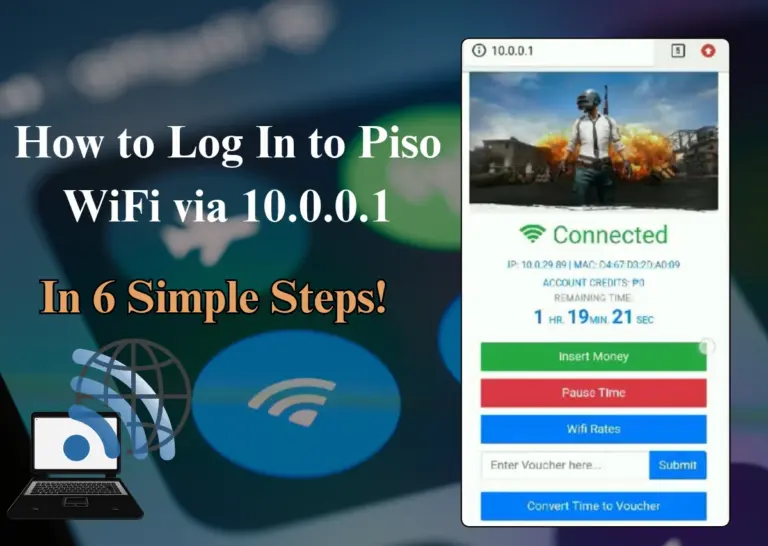
Connect to the Piso Wifi Network: Access the WiFi settings on your smartphone, computer, or tablet. Choose the Piso WiFi network name shown on or around the vending machine and wait for your device to establish a connection.
Open a web browser: Open Chrome, Firefox, Safari, Microsoft Edge, or another web browser on your device. Ensure you are connected to the Piso WiFi network prior to proceeding.
Enter 10.0.0.1 in the Address Bar: Type http://10.0.0.1 into the browser’s address bar, where website addresses appear.
Load the Piso WiFi Login Portal: Press Enter on a computer or tap Go on your phone’s keyboard. The Piso WiFi login page should appear, allowing you to access the available internet options.
Tip: If it does not load, temporarily turn off mobile data and try again.
Pay Your Payment: When paying with coins, insert the necessary amount and select Done Paying or Submit, if asked. If GCash or Maya is available, choose the appropriate e-wallet or QR payment method and adhere to the on-screen prompts to finish the transaction.
Wait for Your Internet Session to Activate: After your payment is confirmed, the system should activate your internet access. Check the portal for your remaining time or session status before continuing.
Important tip: If the Piso WiFi login page does not open, check that you are connected to the correct network, disable mobile data temporarily, and re-enter http://10.0.0.1 in the address bar.
Piso WiFi Login Portal
The Piso WiFi login page is the site that enables users to connect to the internet via a coin-operated Piso WiFi device.
In numerous configurations, you can access the portal by typing http://10.0.0.1 into your browser’s address bar while connected to the Piso WiFi network.
After the login page appears, you can explore the internet options, add coins, input a voucher code, or select a valid payment method.
Piso WiFi Login Password and Voucher Code
Secure passwords are the essential part of any crucial system that regulates and performs a multiple task for a wide range of users. For vending machine owners, using a strong password is essential for keeping the system secure and managing internet access properly.
You can pay with coins at the machine, or you can enter a voucher code in the piso wifi login portal at 10.0.0.1. You can buy a voucher from a nearby retailer shop or the owner of vendo machine to run your wifi session.
The code provides you with a specific amount of internet time. The hours and validity duration depend on the voucher and owner configurations, so verify the timing and expiration prior to purchase.
How to Use Voucher Code To Login 10.0 0.1 Portal?
- Join the Piso WiFi network on the device you will be using.
- Enter 10.0.0.1 in the browser’s address field.
- Select the voucher choice and input the code accurately.
- Submit the code and verify that your remaining time has begun.
Piso WiFi Admin Login
Admin login for piso wifi network provides complete authority to the owner to keep track of vouchers, pricing and network setting. Google gets many searches for Piso Wifi Admin login and 10.0.0.1 admin piso wifi as a result both terms are right and redirect the owner to the correct platform.
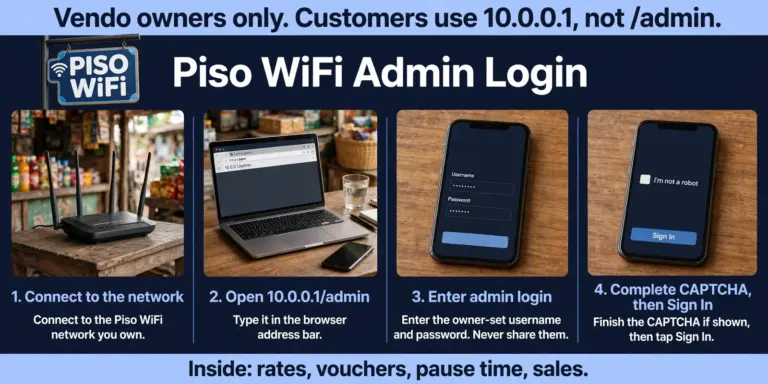
How to Access the Admin Portal at 10.0.0.1/admin
Following are some of the simple steps that leads user to access the admin portal:
- Link to the Piso WiFi network that you oversee.
- Launch a web browser and enter 10.0.0.1/admin in the URL field.
- Input the admin username and password.
- Finish the CAPTCHA displayed, then select Sign In or Login.
Authority of Admin Dashboard
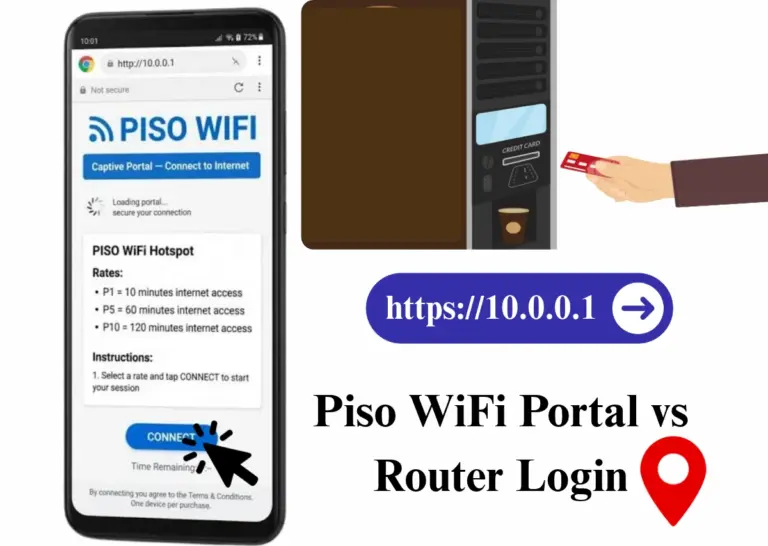
Piso WiFi Portal vs Router Login
Many users open the wrong page because both logins can look similar. Use this table to check which one you actually need. If you only want to use the internet, you need the portal login, not the router login.
| Piso WiFi Portal Login | Router Login | |
|---|---|---|
| What it is | The customer page for the Piso WiFi system | The settings page for the router hardware |
| Who uses it | Customers using the Piso WiFi network | The owner or the person who set up the router |
| Address | 10.0.0.1 in the browser address bar | Varies by router brand and model. It is often the gateway address shown on the router label, such as 192.168.1.1 or 192.168.0.1 |
| Use it if you want to | Start a session, check remaining time, insert coins or enter a voucher code, and pause or resume your time | Change the WiFi name, WiFi password, network settings, or router settings |
| Login details | Usually no owner username or password. You use a paid session or a voucher code | Router admin username and password, set by the owner. Do not share them |
| If you open the wrong page | You may see a router login asking for a username and password you do not have | You will not see your remaining time, voucher option, or Pause Time button |
Note: The Piso WiFi admin access at 10.0.0.1/admin differs from the router login. This is the login for vendo owners to access rates, vouchers, and sales, rather than the router settings page.
Piso WiFi Pause Time Login
Piso Wifi Pause time login means that a user especially signs in to the portal to pause their session via the pause button and save their remaining minutes.
- Access the customer portal at 10.0.0.1 as outlined previously.
- Find the Pause Time button on the session control panel.
- Press it to instantly freeze your outstanding balance.
- Come back later and select Resume Time to pick up from your last progress.
Why this is important: If you don’t log in first, there isn’t an active session to pause. The pause button only becomes available after you have logged in successfully and initiated a paid session.
How to Log Out of Piso WiFi
There is no particular steps to logout from Piso wifi system as the user automatically logout once the session ends or its time expire.
However, if a person want to end their internet time earlier then they can logout easily through the option that appears in the same 10.0.0.1 user dashboard to end their current session.
Common Piso WiFi Login Typos
If the Piso WiFi portal does not open, check your typing first. Most login problems are not a broken machine. They are one small typing mistake in the address.
The correct address has only 4 parts and 3 dots:
10.0.0.1
Type it exactly like this, with no spaces and no extra numbers. Type it in the browser address bar, not in Google search.
Extra-Zero Variants That Never Work
The most repeating error is adding one additional zero. Individuals frequently enter 10.0.0.0.1 instead of 10.0.0.1. This frequently occurs when typing rapidly on a mobile keyboard.
| What People Type | Why It Does Not Work | Type This Instead |
|---|---|---|
| 10.0.0.0.1 | Extra zero, 5 parts instead of 4 | 10.0.0.1 |
| 10.0.0.0.1/admin | Extra zero in the admin address | 10.0.0.1/admin |
| 10.0 0.0 1 | Spaces instead of dots | 10.0.0.1 |
| 10.0.0.0.1 piso wifi portal login | Wrong address, plus extra words in the address bar | 10.0.0.1 |
| 10.0 0.0 1 piso wifi portal login pause | Spaces, plus extra words in the address bar | 10.0.0.1, then tap Pause Time |
This covers all the extra-zero searches for the Piso WiFi portal login, including the admin and pause time versions. The problem is always the same: the address itself is wrong.
Other Login Address Variants Seen in Searches
- sign in piso wifi
- log in piso wifi
- piso wifi log in
- piso wifi login pause
- 10.0.01/admin piso wifi
- 10.0.0.1 piso wifi pause time 10.0.0.1 login (typing the address twice by mistake)
Piso WiFi Login Not Working
Many times it happens that pisso Wifi login does not work or user/admin face challenges in opening the right dashboard on their devices. It can be due to the active VPN or it fails to match the right DNS or sometimes your device might be stuck on “Obtaining IP Address” or assigned a bad lease.
To fix a Piso WiFi login or portal page that will not open, use the direct portal address Piso WiFi Pause Guide or follow these step-by-step troubleshooting methods:
| Problem | Likely Cause | Fix |
|---|---|---|
| Page won’t load | Wrong network or incorrect address | Reconnect to the Piso WiFi network and enter http://10.0.0.1 carefully. |
| Admin login rejected | Password was changed | Contact the operator or reset the machine using the manufacturer’s instructions. |
| Voucher code won’t work | Code has expired or was already used | Check the code and request a new voucher if necessary. |
| “Not secure” or HTTPS warning | Browser is using HTTPS | Manually enter http://10.0.0.1 in the address bar. |
| Page loads, then freezes | VPN interference or browser issue | Disable the VPN temporarily and reload the page. |
| Pause button is missing | Pause feature is disabled or unavailable | Ask the operator whether the pause feature is supported. |
| Connected, but no internet | Session is inactive or expired | Open http://10.0.0.1 and check your session status. |
| Portal won’t load after several tries | Router or machine needs a restart | Ask the operator to restart the equipment, then try again. |
| Portal loads but won’t connect | Device limit reached or access restricted | Contact the operator or wait for a device slot to become available. |
Note about HTTPS warnings: The local address 10.0.0.1 may use HTTP rather than HTTPS, depending on the machine’s configuration. Enter http://10.0.0.1 directly instead of automatically accepting browser security warnings. Avoid entering passwords or sensitive information if the page looks suspicious.
Piso WiFi Portal Not Showing
If the Piso WiFi portal does not appear, it typically indicates that your device isn’t completely connected to the Piso WiFi network, or the browser failed to launch the portal page. Remain linked to the Piso WiFi network, disable mobile data and any VPN, then launch your browser and enter http://10.0.0.1 in the address bar, instead of a Google search.
If it still doesn’t appear, disconnect from the network, reconnect, and attempt 10.0.0.1 once more. Should the machine be powered down or the portal turned off by the owner, the page will remain unloaded until the machine is operational once more.
Piso WiFi Login Not Working on Windows 10 and Windows 11
If Piso WiFi login is not working on Windows 10 or Windows 11, the portal often does not open on its own.
Initially, select the WiFi icon and ensure that you are connected to the Piso WiFi network and not to a different network or mobile hotspot.
Disable any VPN, then launch Chrome or Edge and enter 10.0.0.1 in the address bar.
If the page remains empty, remove the Piso WiFi network from your WiFi settings, reconnect, and attempt again in a private window.
Piso WiFi Login Not Working on Mac and PC
If Piso WiFi login is not working on Mac, the portal page may not appear after you connect, especially if a VPN or iCloud Private Relay is on.
On a PC, use the same check: stay on the Piso WiFi network, turn off any VPN or proxy, and open the portal in a fresh browser window.
Piso WiFi Login by System
The piso wifi is managed by the coin-operated vending machine, with distinct rules for both the user and the administrator. Users and administrators have distinct roles, leading to different work dynamics.
All three systems use the same basic customer login. The difference is the portal layout, the payment and voucher options, and the owner settings.
LPB Piso WiFi Login
Lpb Piso Wifi login is required at customer portal. First they need to connect to the wifi and then a person needs to insert their coin in vendo machine as per their internet time. Moreover, it also allows user to pay via voucher or Gcash and Maya payments are also acceptable at the store.
ADO Piso WiFi Login
Another name use for ADO Piso Wifi login is Adopisoft login that is also a convenient resource for many customers to connect with their device. It is more open source and customisable for customers then lpb wifi pause time network and commonly used on Raspberry Pi and MikroTik based machines.
Pisofi Login
The customer portal address is also utilized for Pisofi login. The client portal is accessible at http://10.0.0.1 while the owner portal can be found at http://10.0.0.1/admin.
Its primary distinction for users is WiPass, the PisoFi voucher code system, which proprietors can utilize in place of coins.
Tips for a Smooth Piso WiFi Login
Login Piso Wifi is one of the most necessary and crucial part for a person to avail the internet service, therefore given tips will help a user to make their login process further smooth:
Conclusion
Piso WiFi login is simple when you use the correct portal address, http://10.0.0.1. Connect to the Piso WiFi network to start your session, check your remaining time, or use the pause feature if available.
If the login portal does not open, verify the address and follow the troubleshooting steps above. For machine settings, voucher management, or network issues, use the appropriate admin portal or contact the operator for help.