How to Extend Piso WiFi Range: Extender, Mesh and Access Point Guide 2026
Extend Piso wifi range guide provides the detail and easy knowledge related to the internet connection strength within an area.
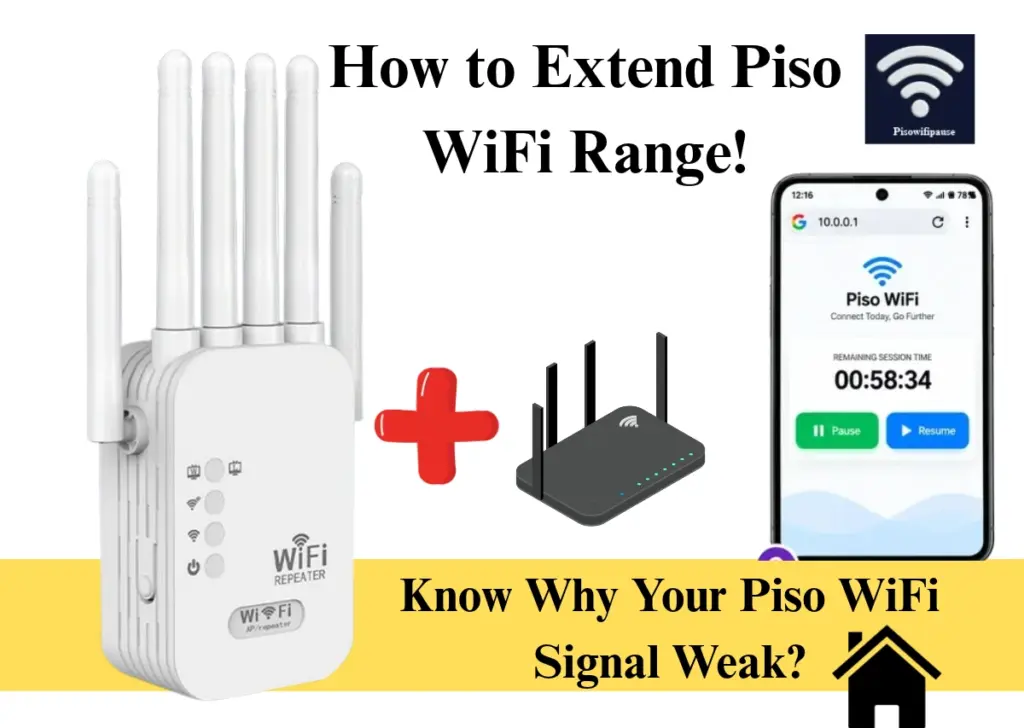
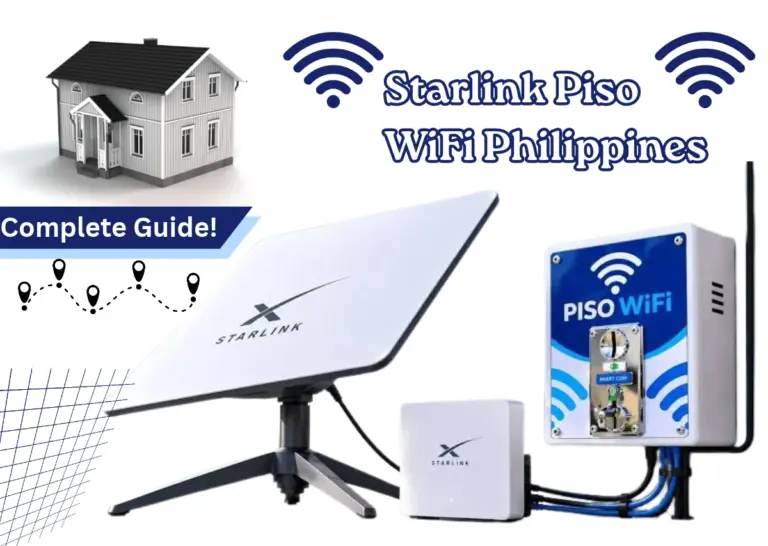
Piso wifi pause machines have been found across the philippines local store like sari sari and dorms so that people around the neighbourhood can get the full access of paid internet that runs through coin operated vendo Machines.
What Is WiFi Range Extension for Piso WiFi?
Wifi Range extensions for piso wifi declares how powerful its connection is and how much area is exactly coming under its service. In this latest guide, addresses that issue for both users and vendor proprietors.
You will receive router positioning, actual dBm goals, WiFi boosters, high-gain antennae, and mesh configurations. We also include Piso WiFi pause duration at 10.0.0.1, ensuring no paid minutes are wasted. Everything here aims toward one objective: quicker, broader Piso WiFi access.
How a WiFi Extender Works with a Piso WiFi Vendo Machine
Here is the simple procedure taken by wifi extender to provide Streamlined signals of piso network in homes:
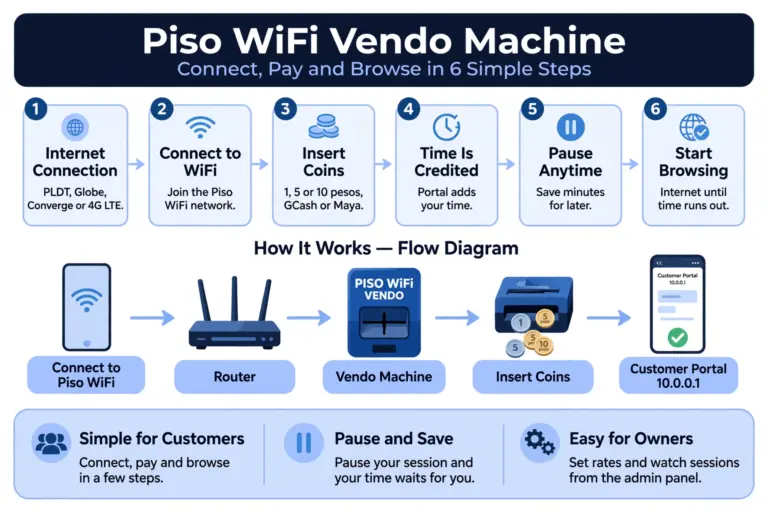
Once the user connects to piso wifi portal 10.0.0.1 then the rest will be the same from inserting coins or paying online via Gcash or maya to starting or pausing the session in between. The 2.4 GHz band extends further than 5 GHz, making it the preferable option for larger coverage.
Speed may decrease slightly, as the extender captures and retransmits the signal. A dual-band extender mitigates this decline.
Why Is My Piso WiFi Signal Weak?
Weak wifi signals can be caused by few of the important reasons that include its placement, your gear and the number of people that are connected to the particular supply of signals.
For a vendo owner, weak signal means fewer coins. For a user, it means paid time drains on a dead connection.
Distance from the Vendo Machine
WiFi signal gets weaker the farther you move from the machine. A customer sitting across the street or on the second floor may get a weak signal or no signal at all.
Concrete Walls and Physical Obstacles
Thick concrete walls, metal roofs, and closed doors block WiFi signals. In Philippine concrete homes, the signal often drops sharply after passing through just one or two walls.
Interference from Other Networks
Nearby WiFi networks, Bluetooth devices, and microwaves use the same airwaves and crowd the signal. When many networks share one channel, your Piso WiFi signal slows down and drops more often.
Too Many Users on One Router
Every connected phone shares the same router and internet speed. When too many users connect at once, each one gets less speed and the connection feels slow or unstable.
How to Extend Piso WiFi Range
Extending Piso wifi range has multiple benefits for the users and also for the owners as it does more than kill dead spots. It grows your coverage, your uptime, and your income.
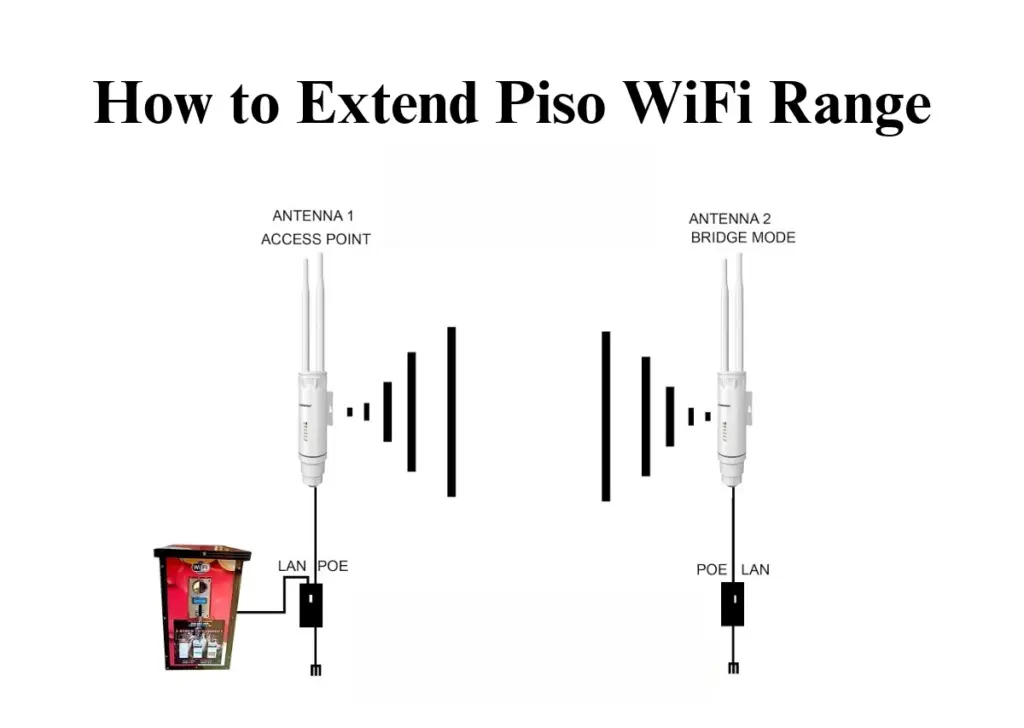
Move the Vendo Machine and Router to a Better Spot
Place the machine in a high, open area near the middle of the space you want to cover. A machine placed behind a wall or under a table sends a weak signal, but a machine that is clearly visible and raised can reach more people.
Install a WiFi Range Extender
An extender gets the signal from the machine and sends it again in areas where the signal is weak or not working. It’s the most affordable solution, and it works great for adding one extra room or for the floor above.
Add an Outdoor Access Point
An outdoor access point placed outside provides WiFi coverage to areas like a yard, street, or open space that indoor WiFi signals can’t reach. It’s the best option when your customers are sitting outside your store or home.
Use a Mesh WiFi System for a Big Area
A mesh system uses two or more devices that work together to create a single network throughout a big home or area. It’s more expensive than an extender, but it provides consistent coverage in all areas without any dead spots.
How to Set Up a WiFi Extender for Piso WiFi
Setting up a wifi extender has multiple steps that needs to be manage in an appropriate way to get stronger network connection.
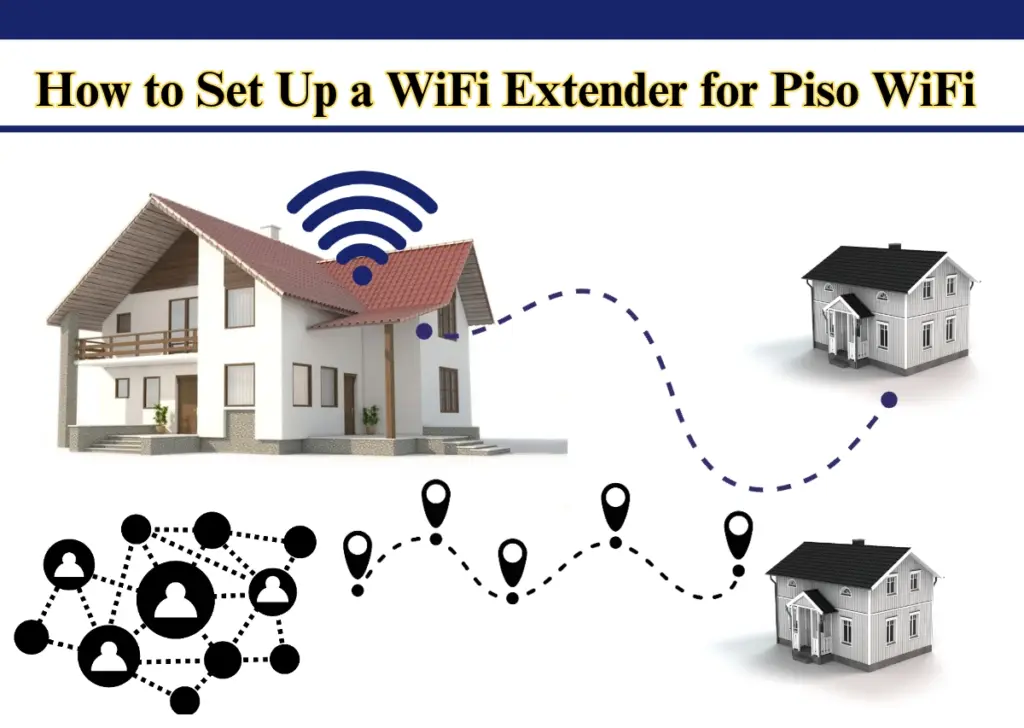
Set Up with the WPS Button
Many new WiFi extenders have a feature called WPS, which makes it easy to set up the device without needing a password.
Plug in the extender. Put it near your router in an outlet to begin. You can move it to a better spot after setup is done.
Press the WPS button on the router. Hold it for about 3 seconds.
Press the WPS button on the extender. Press the WPS button on the router and then press the WPS button on the extender within 2 minutes.
Move the extender to the target location. Take the device off the power and move it to a place that’s about halfway between the router and where the signal is weak.
Set Up from the Extender Web Page
In many cases the WPS System is unavailable, and in that case the extender can be setup manually its web interface:
Plug the extender into a power outlet and wait until the power indicator light comes on.
Connect your device to the extender’s default Wi-Fi name, which is often written on the device itself or listed in the user manual.
Open a web browser and type in the setup URL, which is usually a special IP address or local address given in the manual, like http://extender.local.
Log in to the setup page, and the default username and password are usually “admin“. Choose your WiFi network, type in your WiFi password, and finish setting up.
Move the extender to the most effective position between the router and the area with poor signal.
Connect the Extender to Your Piso WiFi Network
Plug in the extender halfway between the vendo machine and the dead zone, then wait for its light to turn on.
On your phone, open WiFi settings and connect to the extender’s network name.
Open a browser and go to the extender’s setup page. The address is printed on the extender or in its manual.
Choose your Piso WiFi network from the list and type its WiFi password.
Save, then wait for the extender to restart and connect.
Check the Portal Still Opens at 10.0.0.1 After Setup
Connect your phone to the extended network.
Turn mobile data off.
Open a browser and type 10.0.0.1.
The Piso WiFi portal should open. Insert a coin or tap Pause Time to check if it works.
If the portal doesn’t open, bring the extender nearer to the machine and try again.
Where to Place a WiFi Extender in a Philippine Concrete Home
Generic advice like “put it halfway” was meant for timber-frame homes, where a 2.4 GHz WiFi signal can go through a wall and travel up to 30 meters with very little signal loss.
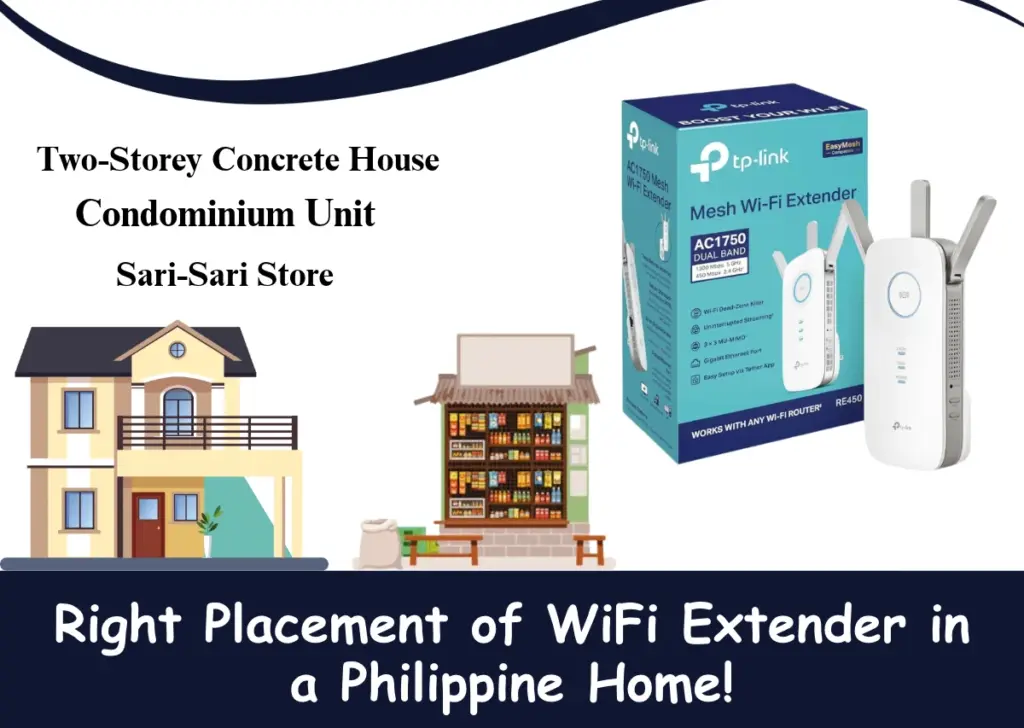
Two-Storey Concrete House
Concrete walls and floors can significantly weaken WiFi signals, especially on the 5 GHz band.
Condominium Unit
Condominiums usually have tight floor plans and solid concrete walls between units, which can block WiFi signals and create areas with no internet connection.
Sari-Sari Store or Small Commercial Space
Small shops need reliable WiFi coverage for customers, payment devices, and connected equipment.
How to Choose a WiFi Extender in the Philippines
When picking a WiFi extender in the Philippines, you need to think about how big your home is, what speed tier your internet plan has (like high-speed fiber plans from PLDT, Globe, or Converge), and whether it works with your router.
2.4 GHz or 5 GHz: Which Band Reaches Farther?
2.4 GHz Band is a much better option for most Piso WiFi setups, especially when the goal is to provide wider coverage with fewer WiFi extenders or access points.
2.4 GHz Band
The 2.4 GHz band can reach farther and goes through walls more easily. Most Piso WiFi setups use it to cover a large area. The downside is that it goes slower and there’s a lot of traffic. In busy areas, neighbors take over this channel all day long. It still covers the biggest area with the least number of units.
5 GHz Band
The 5 GHz band is much quicker and has way less interference. Use it for users who are near the vendor. The catch is that the range is shorter and the ability to penetrate walls is weaker. It also works with wider 80 MHz and 160 MHz channels. Use 5 GHz for close seating and faster speeds.
How Much Speed Do You Need for Piso WiFi?
For a Piso WiFi setup, the recommended internet speed typically starts at a minimum of 10 Mbps for a basic single-machine setup, though most operators and guides suggest 25 Mbps to 100 Mbps or higher depending on how many users connect simultaneously
Best WiFi Extenders in the Philippines
TP-Link offers a range of reliable extenders to enhance coverage and eliminate dead zones at home.
Does a WiFi Extender Slow Down Piso WiFi Speed?
Yes, a standard wireless Wi-Fi extender can slow down Piso WiFi speed by about 50% or more for devices connected through it.
It sends out a signal it already got, so if the signal is weak, the output will also be weak. Put it in a spot where the router signal is still at least 50%, which means the signal strength should be around -60 dBm. Even better, connect it through a Gigabit Ethernet port to get the fastest speed possible.
How to Test Your Piso WiFi Speed After Setup
Connect your phone to the extended Piso WiFi network, the one your customers use.
Turn mobile data off, so the test uses WiFi only.
Open a browser and go to fast.com or speedtest.net.
Tap Go or Start and wait for the result.
Note the download speed and upload speed shown on the screen.
Test again in the spot where the signal was weak before, like the second floor or the next room.
Compare the two results. If the speed in the dead zone is much lower than near the machine, move the extender closer to the machine and test again.
Piso WiFi Pause Time and Login After Extending the Range
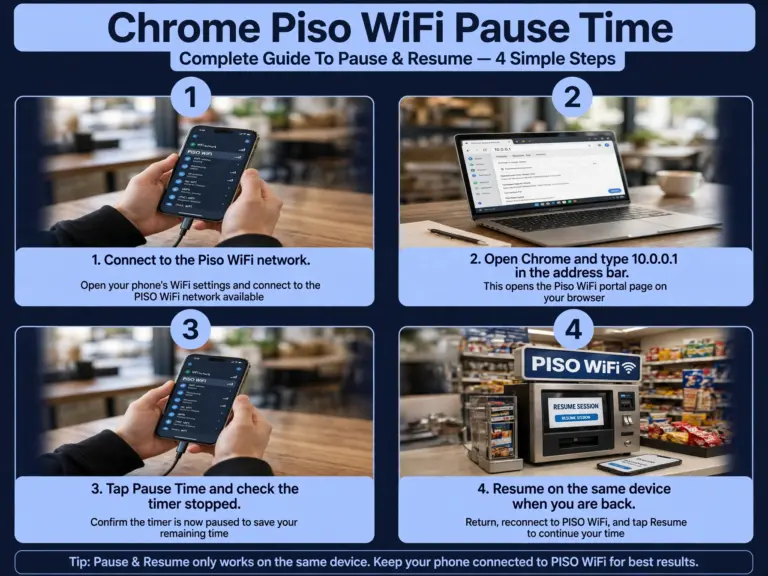
Piso wifi pause time process is usually similar after connecting it with the wifi extender as it is related to the portal system rather than its hardware components.
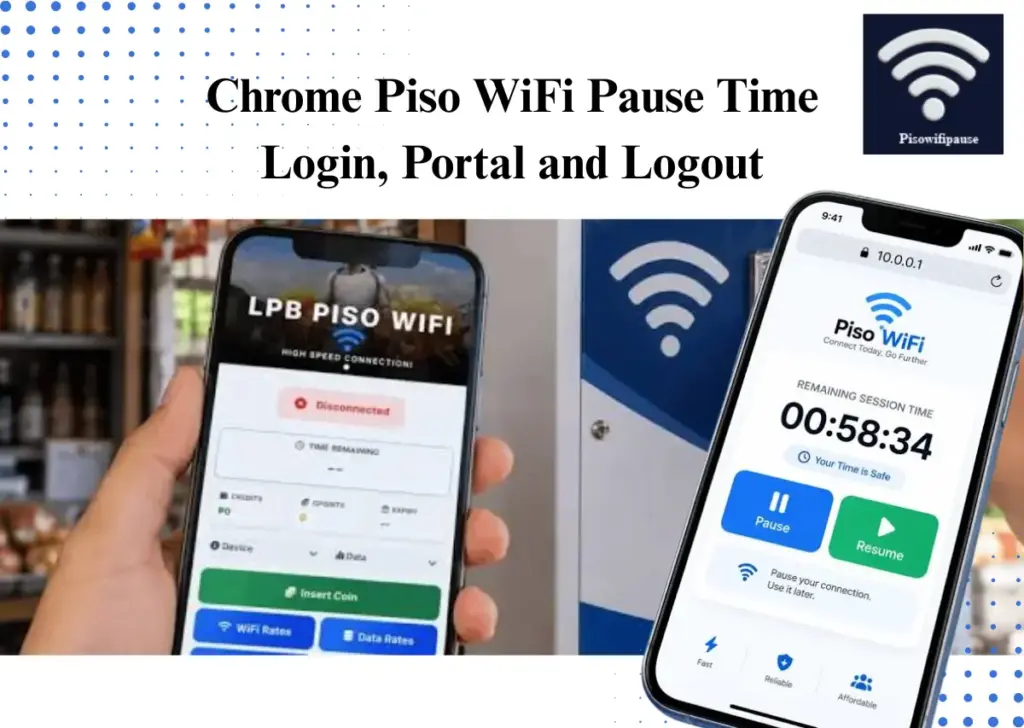
The user needs to launch 10.0 0.1 portal to connect with lpb piso wifi network once the connection is approved then through a coin operated vendo system their paid internet session activates.
Does Pause Time Still Work Through an Extender?
The working of Piso WiFi Pause Time through a Wi-Fi extender largely depends on the extender’s method of managing device recognition (MAC address translation) and if the vending machine applies anti-sharing regulations such as TTL (Time to Live) limits.
Different Extender’s mode:
When your extender functions in a transparent mode,, the Piso 10.00.1 WiFi system can continue to identify your phone or laptop when you select resume.
In case your extender employs NAT (Network Address Translation) or router-like sharing (which covers client MAC addresses behind its own), the Piso WiFi portal might not detect your session or may incorrectly resume the timer.
How to Log In to the Piso WiFi Admin Dashboard After Setup
The steps to login into Peso wifi network is mainly same after applying the extender connection in its system that are described in the process below:
Access the WiFi settings on your smartphone, computer, or tablet. Choose the Piso WiFi network name shown on or around the vending machine and wait for your device to establish a connection.
Open Chrome, Firefox, Safari, Microsoft Edge, or another web browser on your device. Ensure you are connected to the Piso WiFi network prior to proceeding.
Type http://10.0.0.1 into the browser’s address bar, where website addresses appear.
Press Enter on a computer or tap Go on your phone’s keyboard. The Piso WiFi login page should appear, allowing you to access the available internet options.
When paying with coins, insert the necessary amount and select Done Paying or Submit, if asked.
After your payment is confirmed, the system should activate your internet access. Check the portal for your remaining time or session status before continuing.
WiFi Extender Mistakes to Avoid
Most of the mistakes in wifi extenders occur due to wrong placement of the device in the system. This mainly happens in philippines homes, PLDT, Globe, or Converge fiber internet
| Mistake | What Happens | What to Do Instead |
|---|---|---|
| Placing the Extender Too Far from the Router | The extender gets a weak signal and repeats a weak signal, so the dead zone stays slow or unusable. | Place it halfway between the machine and the dead zone, where the signal is still strong. |
| Using a Cheap Extender with No Dual Band | A single-band extender uses one band at a time, so speed drops and the faster 5 GHz option is missing. | Buy a dual-band extender, so one band talks to the router and the other serves your customers. |
| Forgetting to Update the Firmware | Old firmware can cause drops, slow speed, and security holes. | Check for a firmware update in the extender settings every few months and install it. |
| Leaving the Network Open | Anyone nearby can use your internet for free and eat up your paid speed. | Set a WiFi password on the extender and change the default admin password. |
Conclusion
Extending your Piso WiFi range doesn’t have to be complicated. With proper router placement and the right WiFi extender, mesh system, or outdoor access point, you can improve signal strength and eliminate dead zones.
Choose the right WiFi band, position your equipment strategically, and test your connection to ensure reliable coverage. Whether you run a small Sari-Sari store or serve a larger area, the right setup can provide customers with a smoother and more reliable Piso WiFi experience.